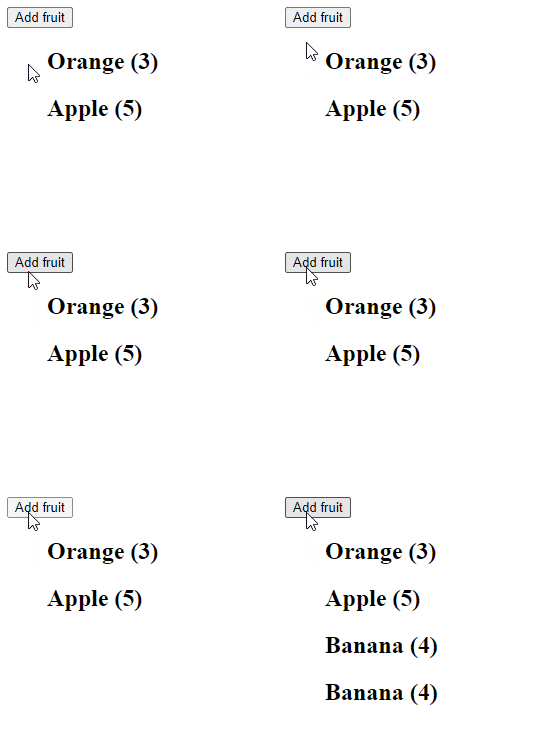
To add an item to an array in Vue, call the push() method in the array with the item as an argument. The push() method will add the item to the end of the array.
The Array push() method adds one or more items to the end of an array and returns the length of the array.
We use the v-for Vue directive to display the items in the array. These rendered items are automatically updated in the view when the array is modified with push().
Add Object Item to Array in Vue
We can use the same approach to add an object to an array and display more complex data. We just have to make sure that we render the properties of each object in the array, not the object itself.
Let’s learn how to easily subtract any number of hours from a Date object in JavaScript.
1. Date setHours and getHours() Methods
To subtract hours from a Date:
Call the getHours() method on the Date to get the number of hours.
Subtract the hours.
Pass the result of the subtraction to the setHours() method.
function subtractHours(date, hours) {
  date.setHours(date.getHours() - hours);

  return date;
}

// 8 AM on June 20, 2022
const date = new Date('2022-06-20T08:00:00.000Z');

const newDate = subtractHours(date, 2);

// 6 AM on June 20, 2022
console.log(date); // 2022-06-20T06:00:00.000Z
Our subtractHours() function takes a Date object and the number of hours to subtract as arguments. It returns the same Date object with the hours subtracted.
The Date getHours() method returns a number between 0 and 23 that represents the hours of a particular Date.
The Date setHours() method sets the hours of a Date to a specified number.
If the hours we subtract would decrease the day, month, or year of the Date, setHours() automatically updates the Date information to reflect this.
// 12 AM on June 20, 2022
const date = new Date('2022-06-20T00:00:00.000Z');

date.setHours(date.getHours() - 3);

// 9 PM on June 19, 2022 (previous day)
console.log(date); // 2022-06-19T21:00:00.000Z
In this example, decreasing the hours of the Date by 3 decreases the day by 1 and sets the hours to 21.
Avoiding Side Effects
The setHours() method mutates the Date object it is called on. This introduces a side effect into our subtractHours() function. To avoid modifying the passed date and create a pure function, make a copy of the date and call setHours() on this copy, instead of the original:
function subtractHours(date, hours) {
  const dateCopy = new Date(date);

  dateCopy.setHours(dateCopy.getHours() - hours);

  return date;
}

// 8 AM on June 20, 2022
const date = new Date('2022-06-20T08:00:00.000Z');

const newDate = subtractHours(date, 2);

// 6 AM on June 20, 2022
console.log(date); // 2022-06-20T06:00:00.000Z

// Original not modified
console.log(newDate); // 2022-06-20T08:00:00.000Z
Tip: Functions that don’t modify external state (i.e., pure functions) tend to be more predictable and easier to reason about. This makes it a good practice to limit the number of side effects in your code.
2. date-fns subHours() Function
Alternatively, we can use the subHours() function from the date-fns NPM package to quickly subtract hours from a Date. It works similarly to our pure subtractHours() function.
import { subHours } from 'date-fns';

// 8 AM on June 20, 2022
const date = new Date('2022-06-20T08:00:00.000Z');

const newDate = subHours(date, 2);

// 6 AM on June 20, 2022
console.log(date); // 2022-06-20T06:00:00.000Z

// Original not modified
console.log(newDate); // 2022-06-20T08:00:00.000Z
The “cannot read property ‘push’ of undefined” error in JavaScript occurs when you try to call the push() method on a variable intended to contain an array, but actually contains a value of undefined.
This could be caused by calling the push() method on:
a variable without first initializing it with an array.
an array element instead of the array itself.
an object property that does not exist or has a value of undefined.
We’ll explore practical solutions for all these possible causes in this article.
1. Calling push() on an uninitialized variable
To fix the “cannot read property ‘push’ of undefined” error, ensure that the variable has been initialized with an array before calling the push() method on it.
let doubles;

let nums = [1, 2, 3, 4, 5];

for (const num of nums) {
  let double = num * 2;

  // ❌ TypeError: cannot read properties of undefined (reading 'push')
  doubles.push(double);
}

console.log(doubles);
In the example above, we called the push() method on the doubles variable without first initializing it.
let doubles;

console.log(doubles); // undefined
Because an uninitialized variable has a default value of undefined in JavaScript, calling push() causes an error to be thrown.
To fix the error, all we have to do is to assign the doubles variable to an array (empty for our use case):
// ✅ "doubles" initialized before use
let doubles = [];

let nums = [1, 2, 3, 4, 5];

for (const num of nums) {
  let double = num * 2;

  // ✅ push() called - no error thrown
  doubles.push(double);
}

console.log(doubles); // [ 2, 4, 6, 8, 10 ]
2. Calling push() on an Array object
To fix the “cannot read property ‘push’ of undefined” error, ensure that you didn’t access an element from the array variable before calling push(), but instead called push() on the actual array variable.
Accessing the 0 property with bracket indexing gives us the element at index 0 of the array. The array has no element, so arr[0] evaluates to undefined and calling push() on it causes the error.
To fix this, we need to call the push on the array variable, not one of its elements.
3. Calling push() on an object’s property that is undefined
To fix the “cannot read property ‘push’ of undefined” error in JavaScript, ensure that the object property that you are calling the push() method on exists and is not undefined.
Accessing a non-existent property from an object doesn’t throw an error in JavaScript, but rather gives you a value of undefined. It’s if you try to call a method like push() on that non-existent property that you will encounter an error.
In this case, we can fix the error by setting the score property of the second array element to a defined value.
const students = [
  { name: 'Mac', scores: [80, 85] },
  // ✅ Fixed: "scores" set to a defined value
  { name: 'Robert', scores: [] },
  { name: 'Michael', scores: [90, 70] },
];

// ✅ "scores" property exists, "push()" works - no error thrown
students[1].scores.push(50);
To remove all vowels from a string in JavaScript, call the replace() method on the string with this regular expression: /[aeiou]/gi, i.e., str.replace(/[aeiou]/gi, ''). replace() will return a new string where all the vowels in the original string have been replaced with an empty string.
pattern – a pattern to search for in the given string. We used a regular expression for this, but it can also be a string.
replacement – the string used to replace the matches of the specified pattern in the string. By passing an empty string (''), we remove all occurrences of this pattern in the given string.
Note: replace() does not modify the original string, but returns a new string. Strings are immutable in JavaScript.
Regular Expression Explained
We use the two forward slashes (/ /) to specify the start and end of the regular expression.
The [] characters are used to specify a pattern that matches any of a specific group of characters. For example, the pattern [abc] will match 'a', 'b', or 'c'. In the same way, the [aeiou] pattern will match any of the 5 vowel characters in the English alphabet.
The g (global) regex flag is used to match all occurrences of the regex pattern. Without this flag, only the first pattern match would be removed after calling replace().
const str = 'coding beauty';

// "g" regex flag not set
const noVowels = str.replace(/[aeiou]/i, '');

// Only first vowel removed
console.log(noVowels); // cding beauty
The i (ignore case) flag is used to perform a case-insensitive search for a regex match in the given string. This ensures that all vowels are removed from the string whether they are uppercased or not.
const str = 'cOding bEaUty';

// "i" regex flag NOT set
const noVowels1 = str.replace(/[aeiou]/g, '');

// Only lowercased vowels removed
console.log(noVowels1); // cOdng bEUty

// "i" regex flag set
const noVowels2 = str.replace(/[aeiou]/gi, '');

// All vowels removed
console.log(noVowels2); // cdng bty
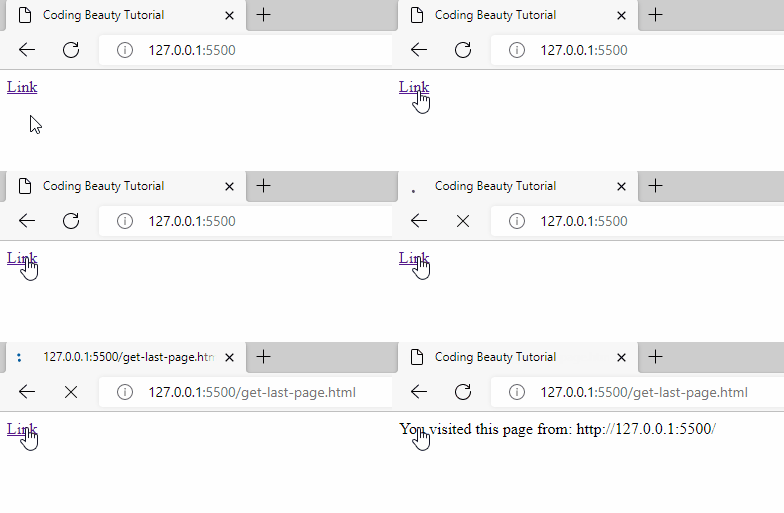
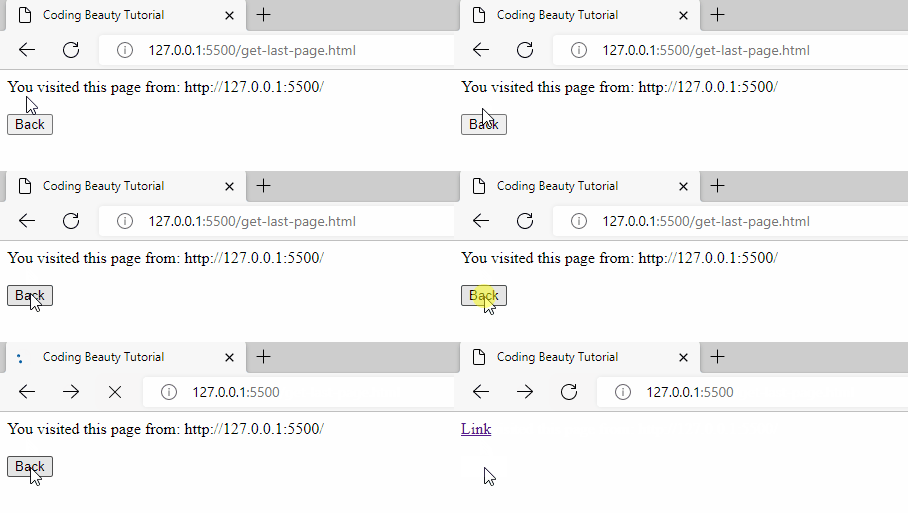
Displaying the previous page URL on the visited page.
Limitations of document.referrer
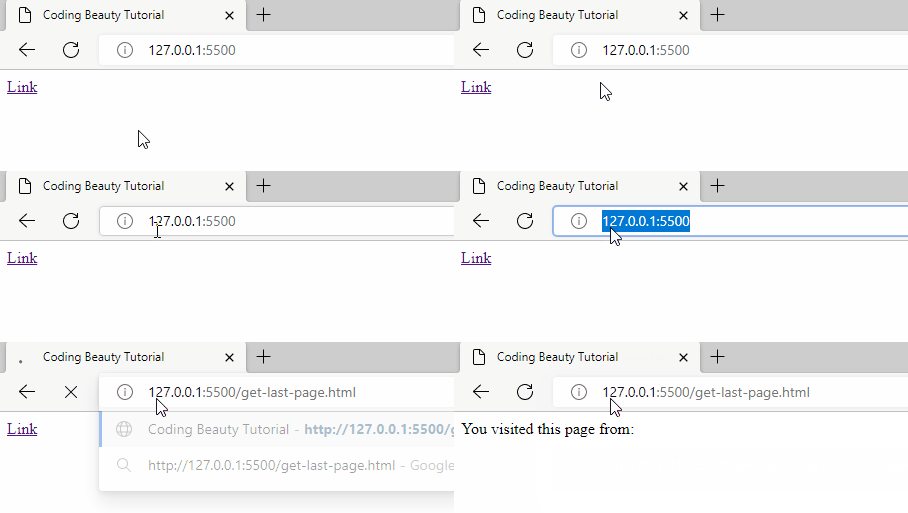
The document.referrer property doesn’t always work though. It typically gives the correct value in cases where the user clicked a link on the previous page to navigate to the current page.
But if the user visited the URL directly by typing into the address bar or using a bookmark, document.referrer will have no value.
The previous page URL can’t be displayed for a direct visit.
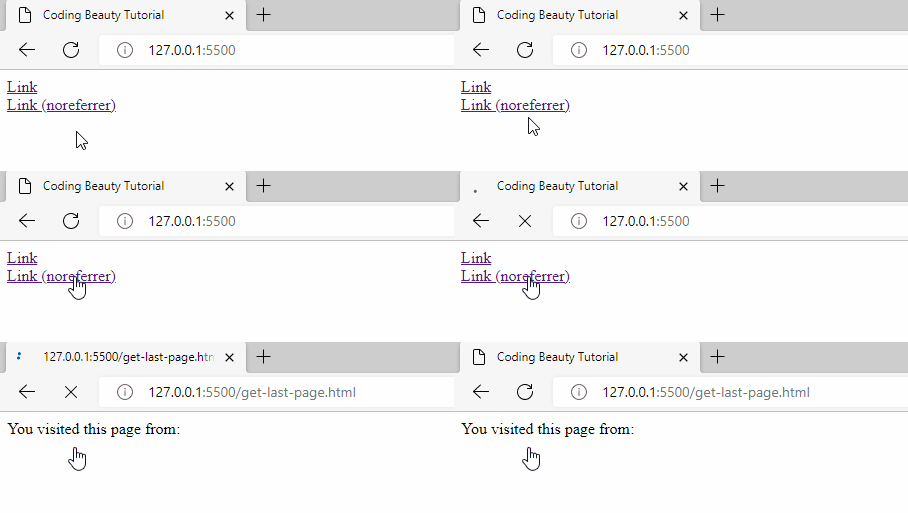
document.referrer also won’t have a value if the clicked link was marked with the rel="noreferrer" attribute. Setting rel to noreferrer specifically prevents referral information from being passed to the webpage being linked to.
The document.referrer property doesn’t always work though. It typically gives the correct value in cases where the user clicks a link on the last page to navigate to the current page.
But if the user visited the URL directly by typing into the address bar or using a bookmark, document.referrer will have no value.
The last page URL can’t be displayed for a direct visit.
document.referrer also won’t have a value if the clicked link was marked with the rel="noreferrer" attribute. Setting rel to noreferrer specifically prevents referral information from being passed to the webpage being linked to.
In this article, we’ll look at different ways to easily call an async function inside the React useEffect() hook, along with pitfalls to avoid when working with async/await.
Call async Functions With then/catch in useEffect()
async functions perform an asynchronous operation in JavaScript. To wait for the Promise the async function returns to be settled (fulfilled or rejected) in the React useEffect() hook, we could use its then() and catch() methods:
In the following example, we call the fetchBooks() async method to fetch and display stored books in a sample reading app:
async/await Problem: async Callbacks Can’t Be Passed to useEffect()
Perhaps you would prefer to use the async/await syntax in place of then/catch. You might try doing this by making the callback passed to useEffect()async.
This isn’t a good idea though, and if you’re using a linter it will inform you of this right away.
// ❌ Your linter: don't do this!
useEffect(async () => {
  try {
    const books = await fetchBooks();
    setBooks(books);
  } catch {
    console.log('Error occured when fetching books');
  }
}, []);
Your linter complains because the first argument of useEffect() is supposed to be a function that either returns nothing or returns a function to clean up side effects. But async functions always return a Promise (implicitly or explicitly), and Promise objects can’t be called as functions. This could cause real issues in your React app, such as memory leaks.
In this example, because the callback function is async, it doesn’t actually return the defined clean-up function, but rather a Promise object that is resolved with the clean-up function. Hence, this clean-up function is never called, and the observer is never unsubscribed from the observable, resulting in a memory leak.
So how can we fix this? How can we use the await operator with an async function in the useEffect() hook?
async/await Solution 1: Call async Function in IIFE
As the name suggests, an IIFE is a function that runs as soon as it is defined. They are used to avoid polluting the global namespace and in scenarios where trying an await call could cause problems in the scope containing the IIFE (e.g., in the useEffect() hook, or in the top-level scope for pre-ES13 JavaScript).
async/await Solution 2: Call async Function in Named Function
Alternatively, you can await the async function inside a named function:
useEffect(() => {

  // Named function "getBooks"
  async function getBooks() {
    try {
      const books = await fetchBooks();
      setBooks(books);
    } catch (err) {
      console.log('Error occured when fetching books');
    }
  }

  // Call named function
  getBooks();
}, []);
Remember the example using the observable pattern? Here’s how we can use a named async function to prevent the memory leak that occurred:
// ✅ Callback is not async
useEffect(() => {
  const observer = () => {
    // do stuff
  };

  // Named function "fetchDataAndSubscribe"
  async function fetchDataAndSubscribe() {
    await fetchData();
    observable.subscribe(observer);
  }

  fetchDataAndSubscribe();

  // ✅ No memory leak
  return () => {
    observable.unsubscribe(observer);
  };
}, []);
async/await Solution 3: Create Custom Hook
We can also create a custom hook that behaves similarly to useEffect() and can accept an async callback without causing any issues.
In this article, we’ll look at different ways to call an async function in the useEffect() hook, along with pitfalls to avoid when working with async/await.
Calling async Functions With then/catch in useEffect()
async functions perform an asynchronous operation in JavaScript. To wait for the Promise the async function returns to be settled (fulfilled or rejected) in the React useEffect() hook, we could use its then() and catch() methods:
In the following example, we call the fetchBooks() async method to fetch and display stored books in a sample reading app:
async/await Problem: async Callbacks Can’t Be Passed to useEffect()
Perhaps you would prefer to use the async/await syntax in place of then/catch. You might try doing this by making the callback passed to useEffect()async.
This isn’t a good idea though, and if you’re using a linter it will inform you of this right away.
// ❌ Your linter: don't do this!
useEffect(async () => {
  try {
    const books = await fetchBooks();
    setBooks(books);
  } catch {
    console.log('Error occured when fetching books');
  }
}, []);
Your linter complains because the first argument of useEffect() is supposed to be a function that either returns nothing or returns a function to clean up side effects. But async functions always return a Promise (implicitly or explicitly), and Promise objects can’t be called as functions. This could cause real issues in your React app, such as memory leaks.
In this example, because the callback function is async, it doesn’t actually return the defined clean-up function, but rather a Promise object that is resolved with the clean-up function. Hence, this clean-up function is never called, and the observer never unsubscribed from the observable, resulting in a memory leak.
So how can we fix this? How can we use the await operator with an async function in the useEffect() hook?
async/await Solution 1: Call async Function in IIFE
As the name suggests, an IIFE is a function that runs as soon as it is defined. They are used to avoid polluting the global namespace and in scenarios where trying an await call could cause problems in the scope containing the IIFE (e.g., in the useEffect() hook).
async/await Solution 2: Call async Function in Named Function
Alternatively, you can await the async function inside a named function:
useEffect(() => {

  // Named function "getBooks"
  async function getBooks() {
    try {
      const books = await fetchBooks();
      setBooks(books);
    } catch (err) {
      console.log('Error occured when fetching books');
    }
  }

  // Call named function
  getBooks();
}, []);
Remember the example using the observable pattern? Here’s how we can use a named async function to prevent the memory leak that occurred:
// ✅ Callback is not async
useEffect(() => {
  const observer = () => {
    // do stuff
  };

  // Named function "fetchDataAndSubscribe"
  async function fetchDataAndSubscribe() {
    await fetchData();
    observable.subscribe(observer);
  }

  fetchDataAndSubscribe();

  // ✅ No memory leak
  return () => {
    observable.unsubscribe(observer);
  };
}, []);
async/await Solution 3: Create Custom Hook
We can also create a custom hook that behaves similarly to useEffect() and can accept an async callback without causing any issues.
Visual Studio Code has thousands of extensions you can install to ramp up your developer productivity and save yourself from mundane tasks. They are all available in the Visual Studio Code marketplace and the vast majority of them are completely free.
Let’s have a detailed look at 10 powerful Visual Studio Code extensions that significantly improve the web development experience.
Prettier is a useful tool that automatically formats your code using opinionated and customizable rules. It ensures that all your code has a consistent format and can help enforce a specific styling convention in a collaborative project involving multiple developers.
The Prettier extension for Visual Studio Code brings about a seamless integration between the code editor and Prettier, allowing you to easily format code using a keyboard shortcut, or immediately after saving the file.
Watch Prettier in action:
Pretter instantly formats the code after the file is saved.
ESLint is a tool that finds and fixes problems in your JavaScript code. It deals with both code quality and coding style issues, helping to identify programming patterns that are likely to produce tricky bugs.
The ESLint extension for Visual Studio Code enables integration between ESLint and the code editor. This integration allows ESLint to notify you of problems right in the editor.
For instance, it can use a red wavy line to notify of errors:
We can view details on the error by hovering over the red line:
We can also use the Problems tab to view all errors in every file in the current VS Code workspace.
The Live Server extension for VS Code starts a local server that serves pages using the contents of files in the workspace. The server will automatically reload when an associated file is changed.
In the demo below, a new server is launched quickly to display the contents of the index.html file. Modifying index.html and saving the file reloads the server instantly. This saves you from having to manually reload the page in the browser every time you make a change.
As you saw in the demo, you can easily launch a new server using the Open with Live Server item in the right-click context menu for a file in the VS Code Explorer.
This extension can work hand in hand with CSS Peek, it provides code completion for the HTML class attribute from existing CSS definitions found in the current Visual Studio Code workspace.
You’ll appreciate the benefits of this extension when using third-party CSS libraries containing hundreds of classes.
Artificial Intelligence continues to increase worker productivity in various jobs, and developers are not left out. IntelliCode is a tool that produces smart code completion recommendations that make sense in the current code context. It does this using an AI model that has been trained on thousands of popular open-source projects on GitHub.
When you type the . character to access an object method or fields, IntelliCode will suggest a list of members that are likely to be used in the present scenario. The items in the list are denoted using a star symbol, as shown in the following demo.
IntelliCode is available for JavaScript, TypeScript, Python, and a number of other languages.
Icon packs are available to customize the look of files of different types in Visual Studio Code. They enhance the look of the application and make it easier to identify and distinguish files of various sorts.
VSCode Icons is one the most popular icon pack extensions, boasting a highly comprehensive set of icons and over 11 million downloads.
It goes beyond file extension differentiation, to provide distinct icons for files and folders with specific names, including package.json, node_modules and .prettierrc.
Final thoughts
These are 10 essential extensions that aid web development in Visual Studio Code. Install them now to boost your developer productivity and raise your quality of life as a web developer.